This story began when I had the opportunity to be a mentor at a workshop. They asked me to present a session on cloud computing. However, I felt it wouldn’t make sense to jump straight into cloud providers. Here’s why — when people hear the word ‘cloud,’ the first thing that comes to their mind is…
“How do you use GCP? How do you use AWS?”
But if you want to dive into cloud computing, you should first get familiar with computers and their operating systems. And what else could it be if not Linux? That operating system where everything is done through the command prompt😜
As an Infrastructure Engineer who started my career directly in a cloud provider, I realized that Linux fundamentals are essential and serve as the very foundation of cloud computing. To ensure people don’t take the wrong path, I decided to cover this topic. Since only the workshop participants had access to the material at the time, I chose to adapt my presentation into an article. You can check out a snippet of the workshop in this post! 😁
Post | Feed | LinkedIn
It might feel repetitive, especially when covering basic Linux concepts, but that’s okay. As long as the readers can understand it, I’m happy to present this topic again. In this article, I’ll guide you through the basics of Linux and show you how to run a simple API directly in Linux using PM2.
This article will be divided into several sections, including:
Are you curious? Alright, let’s dive into the first section
Linux is an open-source OS kernel that serves as the foundation for a wide range of operating systems. It was developed by Linus Torvalds in 1991. Since then it has evolved into one of the most powerful OS available used in various scenarios, including servers, cloud computing, DevOps, and IoT. [1]
Linux is Important in your Cloud Journey because...
Due to the important role of Linux, I want to emphasize to you — the readers of this article — the importance of mastering Linux fundamentals, so you don’t end up like the meme below.
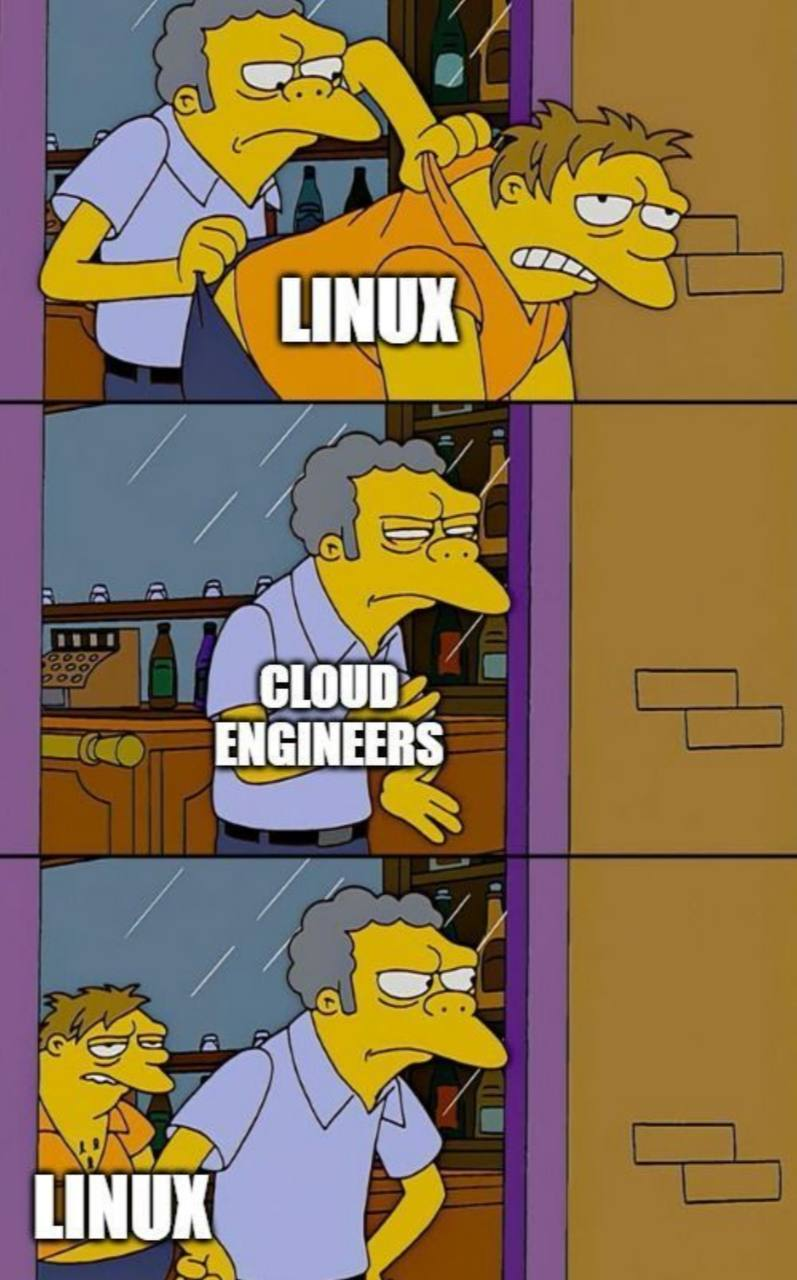
Especially for those pursuing a career in infrastructure, this article may not cover everything. But don’t worry — you can continue learning through roadmap.sh (Linux Roadmap).

Besides the basic commands we’ll cover in the next section, there are several other important topics worth exploring. More importantly, on roadmap, you’ll find reference links (such as blogs or courses) that can further enhance your knowledge.
Alright! We’ve completed the first section — let’s move on to the second one.
Before getting started, ensure you have access to a Linux environment, either through WSL (Windows Subsystem for Linux) or SSH into a remote server.
The first thing that Linux beginners need to understand is the folder structure, commonly referred to as Directories. Just like in other operating systems, each directory has its specific role. Here are some key directories in Linux:
If you have already grasped the principles of directories in Linux, the next step is to familiarize yourself with the basic commands that every Linux user should know. These commands are crucial for understanding how this operating system works as a whole. Furthermore, the command line allows users to access functions that are often unavailable in the graphical interface. Here are some essential commands you can try.
A shell script is a computer program designed to be run by a Unix shell. It’s a sequence of commands that the shell interprets and executes. Shell scripts are often used for automation, system administration, and other tasks. Shell scripting usually has the extension .sh behind the file name. Here’s an example of a file that implements shell scripting.

The first line of a script contains the syntax #!/bin/bash, which is used to call the Bash shell. Alternatively, you can use #!/bin/sh it if you want to create a generic script that is compatible across various operating systems. This is followed by additional commands, allowing you to combine the basic commands you have learned into a shell script to streamline the execution of multiple commands at once.
It’s important to note that the file is typically not executable when you first create a shell script. To make the script executable, you must modify the file’s permissions using the chmod command. For example:
chmod +x script.sh
On Linux, software is typically built as a package, distributed through repositories, and managed on the end-user’s system through package managers. Package management in Linux is the process of managing software in the system, including the installation, update, configuration, and removal of packages. Each Linux distribution usually has its own package management system with different formats and tools.
Because we use the Ubuntu Distro in our workshop, we will use APT for package management. The following commands are often used in APT.
We’ve reached the practical session, which is also the final segment of this workshop. In this session, we will build and run an API using PM2 directly on Linux. This guide will walk us through setting up and running a simple API using Node.js, pnpm, and PM2 in a Linux environment. Let’s get started!
Install Node.js
sudo apt-get install -y curl
curl -fsSL https://deb.nodesource.com/setup_23.x -o nodesource_setup.sh
sudo -E bash nodesource_setup.sh
sudo apt-get install -y nodejs
node -v
Install pnpm
curl -fsSL https://get.pnpm.io/install.sh | sh -
Install Git
sudo apt update
sudo apt install git -y
Clone the Repository
# Using SSH
git clone git@github.com:sintiasnn/example-api.git <your-directory>

# Using HTTPS
git clone https://github.com/sintiasnn/example-api.git <your-directory>
Note: Ensure your SSH key is registered with GitHub. You can generate an SSH key using:
ssh-keygen -t rsa -b 4096 -C "your_email@example.com"
Then, add the generated id_rsa.pub key to your GitHub account. Follow the guide here.
Install Dependencies and initiate PM2
cd <your-directory>
pnpm install
pnpm install pm2 -g
pm2 init
Edit ecosystem.config.cjs for PM2 Configuration
vi ecosystem.config.cjs
module.exports = {
  apps: [{
    name: "my-backend",
    script: "./server.js",
    env: {
      NODE_ENV: "production",
      PORT: 3002,
      HOSTNAME: "127.0.0.1"
    }
  }]
}; Start the API
pm2 start ecosystem.config.cjs
Check the Status in out PM2
pm2 status
Test the API using curl
curl 127.0.0.1:3002
Stop the API
pm2 stop ecosystem.config.cjs
Edit server.js
vi server.js
// Import the framework and instantiate it
import Fastify from "fastify";
const fastify = Fastify({
  logger: true
});

// Declare a route
fastify.get("/", async function handler(request, reply) {
  # change welcomeSentence
  return { welcomeSentence: "Hello World from Fastify!" };
});

// Run the server!!
try {
  await fastify.listen({ port: process.env.PORT, host: process.env.HOSTNAME });
} catch (err) {
  fastify.log.error(err);
  process.exit(1);
}
Update ecosystem.config.cjs
vi ecosystem.config.cjs
module.exports = {
  apps: [{
        name: "my-backend",   # you can adjust name server
        script: "./server.js",
        env: {
            NODE_ENV: "production",
            PORT: 3003,   #change port to anticipate conflict
            HOSTNAME: "127.0.0.1"
        }
  }]
};
Restart the API
pm2 start ecosystem.config.cjs
Test Using the New Port
curl 127.0.0.1:3003
Stop the API
pm2 stop ecosystem.config.cjs
Congratulations! You have successfully built and deployed a simple application on Linux. Throughout this journey, we’ve learned a lot, from an introduction to Linux, the key reasons why Linux serves as the foundation of cloud computing, practicing basic commands, and a brief overview of package management to hands-on experience in building and running applications with PM2. I hope this article is useful for you, and stay tuned for my next articles. See you soon!
How to Manage User Permissions with the GUI in Linux
Linux File and Directory Operations
Linux Package Management Overview
File System Hierarchy Standard (FHS)
Introduction to Linux Shell and Shell Scripting